When you stream from a Magic Leap device to share what you see with others, your digital content and audio is mixed with the view of the world as seen through the on-board world camera. You can send the stream to your PC or to a mobile device running the Magic Leap Mobile App (MLA)
- Limitations
- Streaming to a macOS or Windows PC
- Streaming to a mobile device
- Exit Device Stream
- Troubleshooting
Limitations
While the device is streaming, the streaming icon in the upper-left of your view reminds you that you are streaming.
Keep these limitations in mind:
- Apps that require the world camera for image recognition and other purposes might not work correctly while the streaming service is using the world camera.
- Video capture is not supported while streaming and device streaming is not supported while you are capturing video.
- To protect privacy, some content such as notifications are not streamed.
- To improve streaming performance while using Helio, use only one Helio window at a time.
Streaming to a macOS or Windows PC
You can stream to your computer over your device's Wi-Fi network. Unless you have configured your device for Wi-Fi debugging, you need to connect a USB cable between your PC and your device to initiate the device stream, even though the stream itself is transported over Wi-Fi.
Prerequisites:
- USB-C cable
- Creator Mode enabled on Magic Leap device
- Magic Leap Package Manager for macOS or Windows
- Connect the Magic Leap device over Wi-Fi to the same local network as your macOS or Windows PC.
To enable device stream and stream to your PC:
- In the Magic Leap device, go to Settings (
 ) > Device > Creator, and then turn on Enable Device Stream. If prompted to set up a Magic Leap Mobile App pairing, select Later.
 - In Magic Leap Package Manager, install the Device Stream package and then launch it.
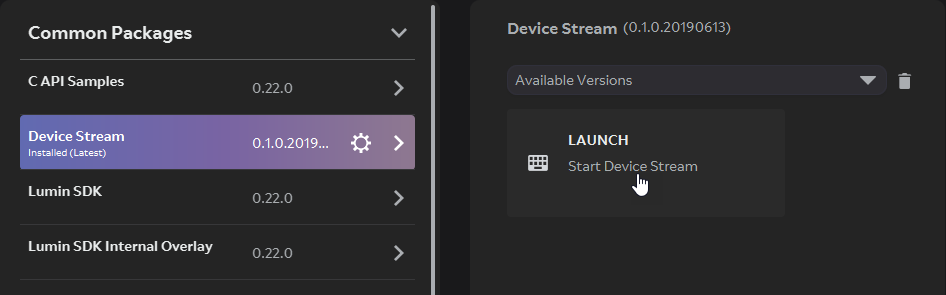
- Connect the device to your computer through USB cable. The device stream program automatically detects the device.
- On the device, select Accept at the New Connection Request notification prompt.
- The device stream should appear in the window.
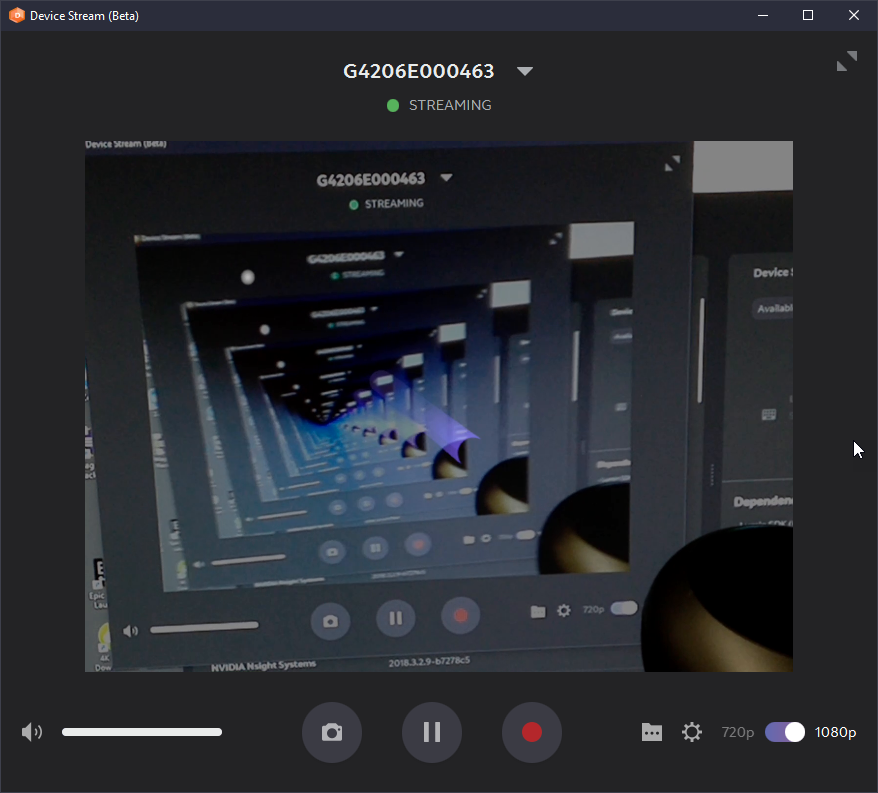
- Disconnect the USB-C cable.
The device streaming app can configure your device for Wi-Fi debugging so that you can initiate new device streams without the USB cable.
To initiate a new device stream untethered:
- Initiate a device stream.
- Click the triangle next to the device serial number.
- Click
 and then click Use Network.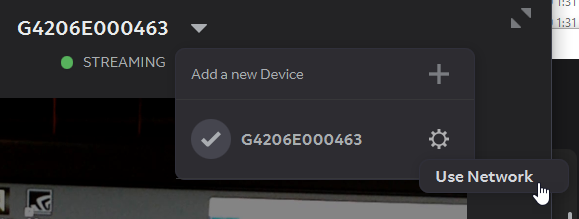
- On the device, select Accept at the New Connection Request notification prompt.
- Disconnect the USB-C cable.
- Click the triangle next to the IP address.
- Click
 next to the IP address, and then click Remember.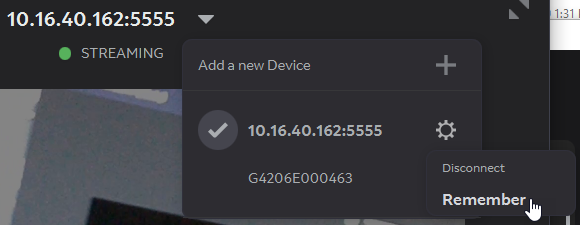
Streaming to a Mobile Device
You can stream to an Android or iOS device that you have paired to your Magic Leap device.
Prerequisites:
- Creator Mode enabled on Magic Leap device
- An Android or iOS mobile device with Magic Leap Mobile App version 1.2 or later
- Pair the Magic Leap device to the Magic Leap Mobile App running on your mobile device
- Connect the Magic Leap device and the mobile device to the same Wi-Fi network. Wi-Fi must have peer discovery enabled
Device streaming verified on Android devices 8.0 and above (Samsung Galaxy S7/8/9, Google Pixel 1/2/3, LG V40) and iPhones running 12.0 & above.
To enable device stream and stream to your mobile device:
- In the Magic Leap device, go to Settings (
 icon) > Device > Creator, and then turn on Enable Device Stream.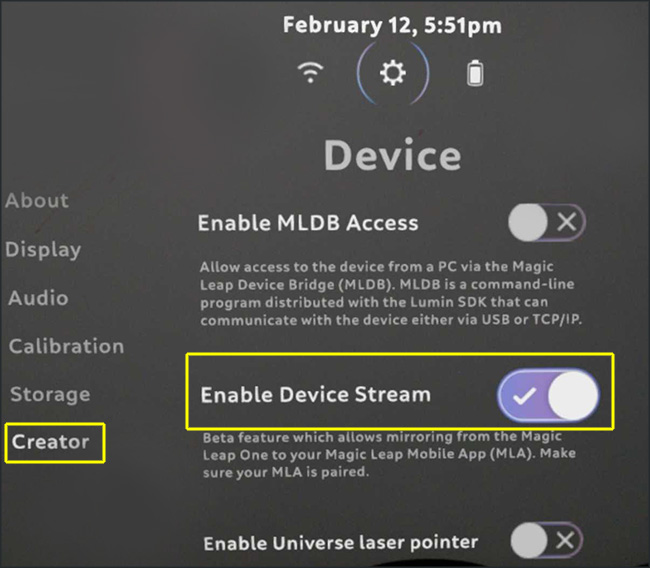
- In the Magic Leap Mobile App, go to the menu (☰ icon) and then tap Device Stream.
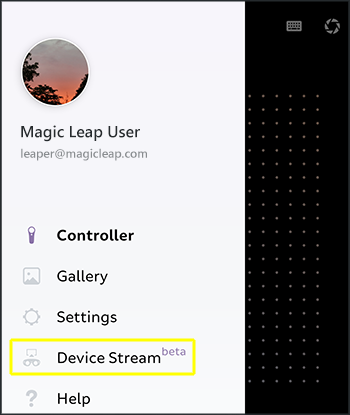
- On the device, select Accept when prompted with the New Connection Request notification.
- The device stream should appear on your mobile device.
Device Stream Guide
By default, the Device Stream Guide is displayed when starting device stream on the Magic Leap Mobile App.
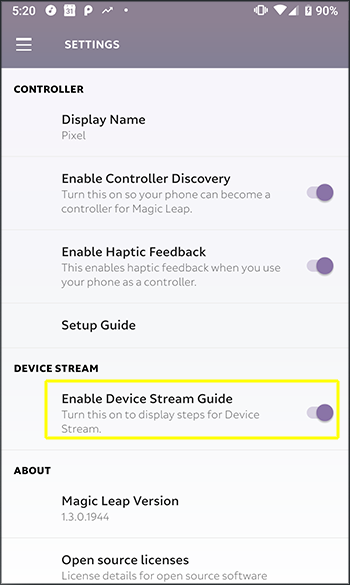
To skip this screen when starting device stream, launch the Magic Leap Mobile App, go menu (☰ icon or swipe-right on Android) > Settings, and then turn off Enable Device Stream Guide.
Exit Device Stream
Device stream exits if any of the following occur:
- You exit the Magic Leap Mobile App on your mobile device or exit the device stream program on your PC.
- You send the Magic Leap Mobile App to the background on your mobile device
- You take the Magic Leap device off your head or you press the Reality button
- You disable device streaming in your Magic Leap device settings.
Troubleshooting
The following guidance is available to help resolve issues working with device stream:
- Device Stream error: Ensure your Magic Leap One has Wi-Fi enabled.
- No Wi-Fi available: Ensure your mobile device is using the same Wi-Fi network as Magic Leap One and that the network has peer discovery enabled.
- No device available: Ensure you have paired your mobile device using the Magic Leap Mobile App (version 1.2 or higher) with Magic Leap One via Bluetooth.
- Device Stream Disabled: Ensure Device Stream is enabled under Creator in Magic Leap One settings.